Getting Started
A step-by-step walk-through from download to first diagram.
Requirements
- Microsoft Visio – Plan 1, Plan 2, or any of the Visio 2019 / 2021 / 2024 desktop editions. Visio for the Web is not supported (it cannot render custom .vssx stencils).
- Windows or macOS – the stencil is OOXML so it loads cleanly on either.
- A few MB of disk space (the full-set zip is about 20 MB).
1. Download
First, pick your units. Visio-Azure ships in two identical builds: Metric (_m, for centimetre/millimetre drawings) and US (_u, for inch/feet drawings). Match the build to your drawing or icons drop at the wrong size and search can miss them. Unsure which you need? See Metric vs US units.
Just the all-icons stencil
The simplest place to start: one file, every Azure service.
- Metric:
Azure_All-Icons_V-5_m.vssx - US:
Azure_All-Icons_V-5_u.vssx
The full set
A ZIP of every stencil, including the per-group stencils and the drawing-resources companion.
A specific category
If you only design for one part of Azure, grab just that group.
| Group | Metric | US |
|---|---|---|
| AI | Metric | US |
| Application | Metric | US |
| Compute | Metric | US |
| Data | Metric | US |
| Deployment | Metric | US |
| Dynamics 365 | Metric | US |
| Endpoint | Metric | US |
| Generic | Metric | US |
| Identity | Metric | US |
| IoT | Metric | US |
| Management | Metric | US |
| Networking | Metric | US |
| Office365 | Metric | US |
| Security | Metric | US |
| Storage | Metric | US |
| Workload | Metric | US |
| Workload-Service | Metric | US |
Browse the Stencil-Metric/ and Stencil-US/ folders for the full list of 17 group stencils plus the drawing-resources companion.
2. Install
Two options. The first is faster; the second persists across drawings.
Open on demand
Double-click any .vssx. Visio opens it in the Shapes panel on the left for the current drawing only.
Add to your My Shapes folder
Drop the .vssx into your Visio My Shapes directory:
Windows: %USERPROFILE%\Documents\My Shapes
macOS: ~/Library/Group Containers/UBF8T346G9.Office/User Content/My Shapes
Restart Visio. The stencil now appears under More Shapes → My Shapes, available in every drawing.
3. Drop your first icon
- In Visio, open your drawing (or File → New → Blank Drawing).
- Open the Visio-Azure stencil if it isn’t already in your Shapes panel.
- Drag any icon onto the canvas.
- Hover near an edge of the icon – one of the nine connection points (the small blue ×) becomes active.
- Draw a connector from that anchor to another icon’s anchor. The connector glues to the exact point, not the icon’s bounding box.
4. Search for services
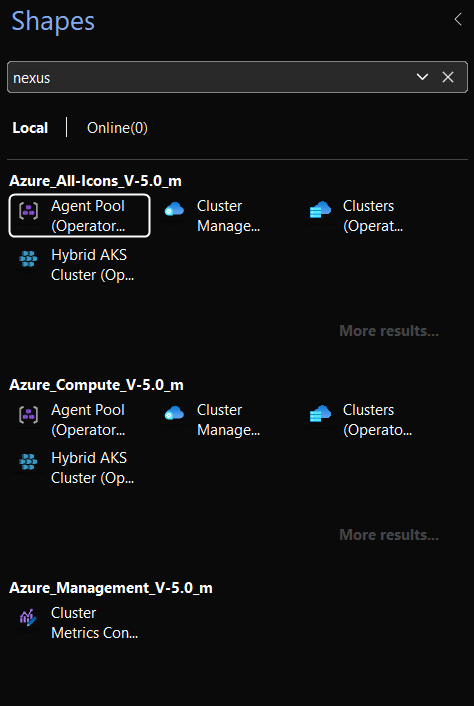
Type any service name into the search box at the top of the Shapes panel. Try vmss, key vault, cosmos db, front door. Many other community stencils have a long-standing search gap here – the Enabling search page covers why, what Visio-Azure fixes, and what to do if your Visio’s shape search needs to be turned on first.
Next steps
- Icon features – the full list of what each master ships with
- Drawing resources – the companion stencil with annotation shapes
- Sponsorship – how to get the SVG and PNG asset files