Icon Features
What every Visio-Azure master carries, why, and how to use it.
Nine connection points
Every master has nine named connection points, positioned mathematically relative to the icon’s centre so any of the four cardinal directions, four diagonals, or “below the caption” anchors snap precisely:
| Name | Formula | Use |
|---|---|---|
North |
(Width × 0.5, Height × 1.1) | Lines coming down to the icon from above |
East |
(Width × 1.1, Height × 0.5) | Right-side connectors |
South |
(Width × 0.5, Height × -0.1) | Lines coming up to the icon from below |
West |
(Width × -0.1, Height × 0.5) | Left-side connectors |
NorthEast |
(Width × 1.1, Height × 1.1) | 45° anchors |
NorthWest |
(Width × -0.1, Height × 1.1) | |
SouthEast |
(Width × 1.1, Height × -0.1) | |
SouthWest |
(Width × -0.1, Height × -0.1) | |
SouthOfText |
(Width × 0.5, -12 mm) | Anchor below the caption – chain of icons in a vertical list |
The anchors sit 10% outside the icon’s bbox so a glued connector ends just outside the icon’s edge – which renders cleanly without overlap.
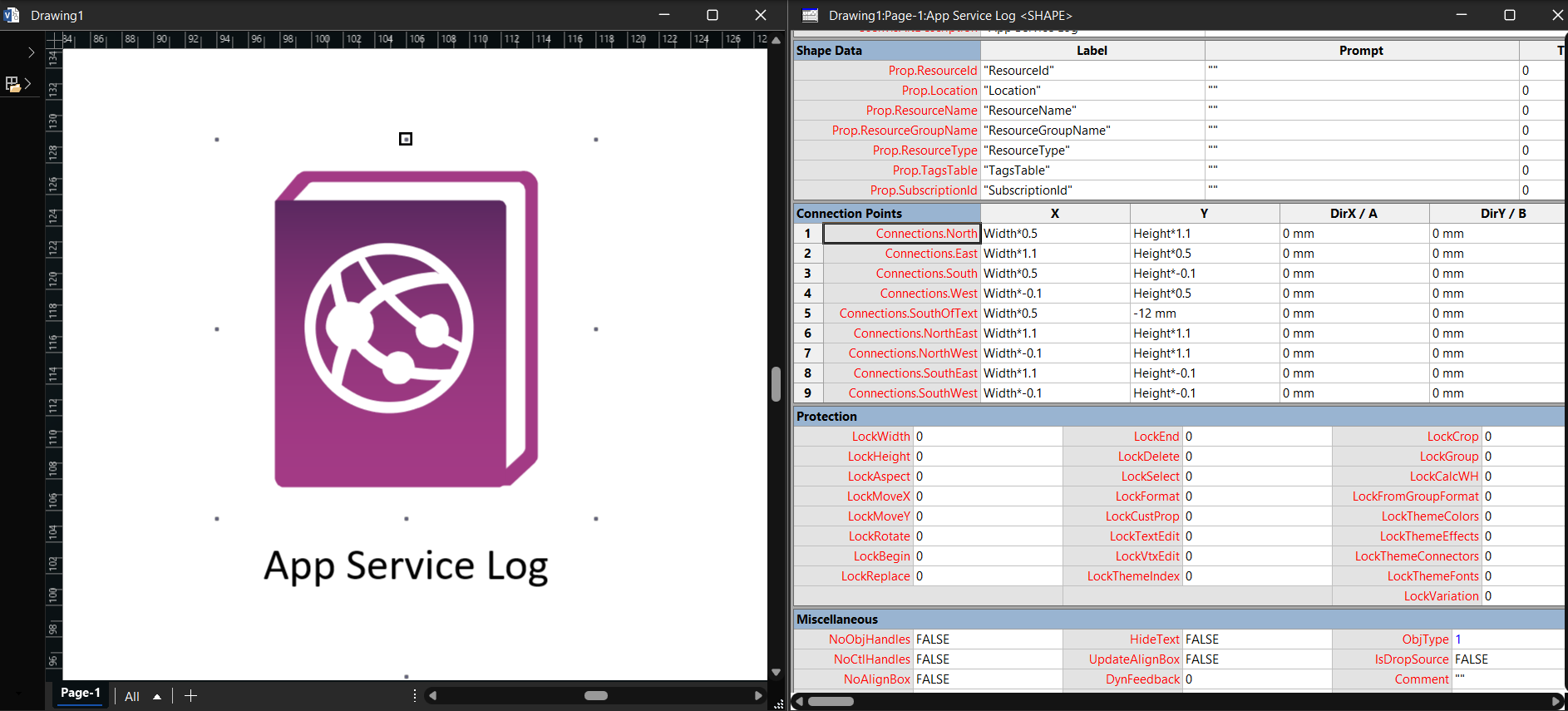
Twenty-millimetre normalised size
Each icon is fit to 20 mm on its longer side, aspect preserved. This means:
- An 18 × 18 icon renders at 20 × 20 mm.
- A 18 × 14 icon renders at 20 × 15.5 mm.
- A 14 × 18 icon renders at 15.5 × 20 mm.
A drawing of fifty different Azure services therefore looks like one drawing, not a collage of icons at random sizes. The legacy pipeline sized by the declared viewBox; many Microsoft icons declare a much larger viewBox than their painted area, so half the icons in those builds came out at 10-12 mm despite being on the same canvas. V-5.0 sizes by the union of path bounding boxes so the painted area itself is what fills the 20 mm.
Seven Shape Data fields
Every non-Office365 master ships with these fields ready for resource metadata:
| Field | Type | Notes |
|---|---|---|
ResourceId |
String | The full ARM resource ID |
Location |
String | Azure region |
ResourceName |
String | The service instance name |
ResourceGroupName |
String | Containing resource group |
ResourceType |
String | E.g. Microsoft.Storage/storageAccounts |
TagsTable |
String | Tags JSON or CSV |
SubscriptionId |
String | GUID |
PowerShell or VBA scripts can iterate the masters on a page and populate these from an Azure inventory, enabling round-trip Visio → ARM / ARM → Visio workflows.
The Office365 group is excluded because those icons represent SaaS applications and don’t carry ARM-style identifiers.
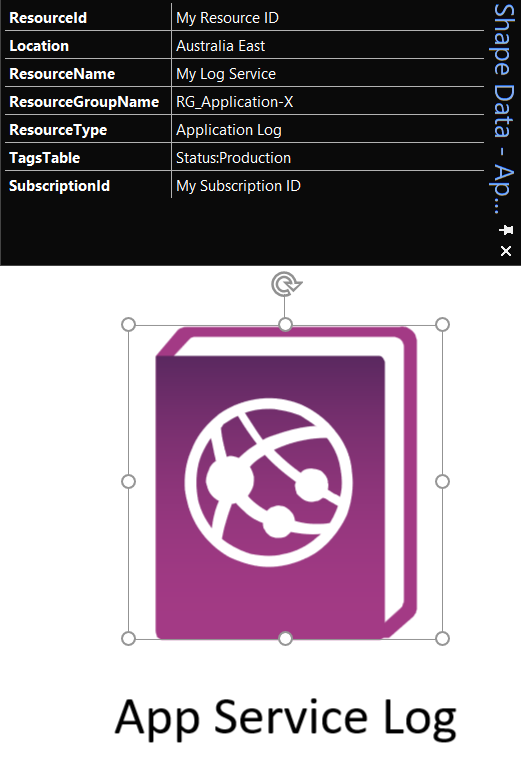
Caption placement
Each master’s caption text sits below the icon, not over it. Sizes:
TxtPinX= Width × 0.5 (centred)TxtPinY= Height × -0.25 (just below the icon)TxtWidth= capped at 35 mm so long names wrap to two lines instead of bleeding sidewaysTxtHeight= TEXTHEIGHT(TheText, TxtWidth) (grows for wrapped text)Char.Font= 4,Char.Size= 8 pt,Char.Color= RGB(0,0,0)
Searchable from the panel
Keywords are written into every cell Visio indexes – Prompt, Description, the ShapeKeywords PageSheet cell, document-level Keywords in app.xml, and dc:subject in core.xml. Type any service or part-name into the Shapes panel search box and the masters surface immediately.
For details on why this used to be broken and how to enable Visio’s own search, see Enabling Search.
ResizeMode = 2
Master.ResizeMode = 2 means when you scale a master after dropping, the line weight and font size scale with it. Useful when you’ve got a high-level system overview at one scale and a detailed component sub-diagram at another – the icons retain their proportions either way.
Double-click opens the text editor
EventDblClick = OPENTEXTWIN() – double-clicking any icon jumps straight into editing its caption, which is by far the most frequent post-drop edit.
Behaviour
Language = 1033(en-US, the canonical Visio language ID)Char.LangID = 1033(consistent caption language)- AlternativeText set to the display name – screen reader / accessibility tooling works correctly
Dark-mode (-DM) variants
Twenty-seven Azure logos are drawn in near-black monochrome (Azure OpenAI, GitHub, Kafka, the App Service / VM / SQL action glyphs, and similar). On a dark canvas they vanish. Each ships a white-fill twin whose master name ends in ` -DM (search the icon name plus -DM`), with white captions, so dark-themed diagrams stay legible. The recolour is real fill geometry, so it scales cleanly at any size.
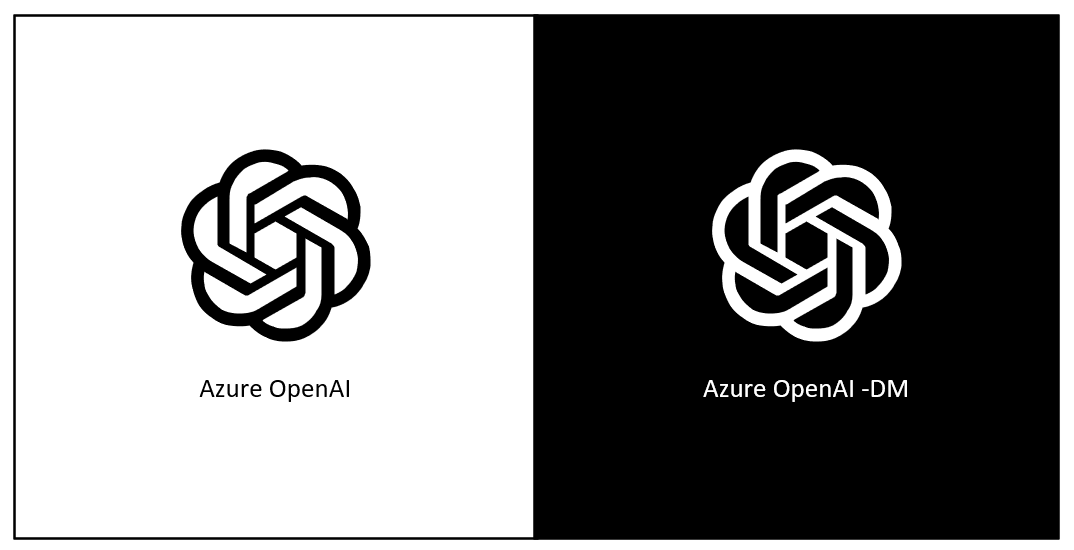
Per-master contract
The exact configuration applied to every master is pinned in code at src/visio_azure/ooxml/geometry.py in the build pipeline. Every cell value comes from a named constant; nothing is inlined. Changes there are deliberate departures from legacy behaviour and are documented in Release Notes.