Desktop Worker Application
A self-contained Electron app that turns any Windows PC into a distributed ML training node. No Python, no PyTorch, no setup required.
Zero-Setup Philosophy
The biggest barrier to distributed compute is setup friction. BOINC projects require users to install runtimes, configure paths, and troubleshoot dependency conflicts. XeeNet eliminates all of this.
When a user launches the XeeNet Worker for the first time, the app automatically:
- Downloads the Python 3.12.8 embeddable distribution (~15 MB)
- Extracts it to
%APPDATA%/xeenet-worker/python/ - Enables pip (edits the
._pthfile, runsget-pip.py) - Detects whether an NVIDIA GPU is present (via
nvidia-smi) - Installs PyTorch: CUDA-enabled (~2.5 GB) if GPU detected, CPU-only (~160 MB) otherwise
- Writes a completion marker and starts accepting tasks
The entire ML environment lives inside the app's data directory. It does not touch the system Python, does not modify PATH, and can be cleanly uninstalled by deleting the folder.
The setup process queries nvidia-smi --query-gpu=name --format=csv,noheader.
If an NVIDIA GPU responds, the app installs PyTorch with CUDA 12.4 support.
If no GPU is found (or if the user has disabled GPU in settings), it installs the lightweight CPU-only build.
Application Architecture
The desktop worker is built with Electron 28 and TypeScript, following Electron's security best practices: context isolation, no Node.js in the renderer, and a typed IPC bridge.
Poll loop, subprocess, timeouts"] PR["Python Resolver
Find Python, check PyTorch"] PS["Python Setup
Auto-download, install"] HD["Hardware Detection
CPU, RAM, GPU profiling"] IPC["IPC Handlers
10 typed channels"] STORE["Electron Store
Persistent config"] TRAY["System Tray
Status icon, quick menu"] LOG["File Logger
Rotating log files"] API["window.xeenet API
(Context Bridge)"] UI["Dark Theme UI
Server URL, resource sliders
Log panel, status badges"] WS --> PR WS --> PS WS --> HD IPC --> WS IPC --> STORE IPC --> API API --> UI WS --> LOG TRAY --> WS style WS fill:#16a34a,stroke:#4ade80,stroke-width:2px,color:#000 style PR fill:#16a34a,stroke:#4ade80,stroke-width:2px,color:#000 style PS fill:#16a34a,stroke:#4ade80,stroke-width:2px,color:#000 style HD fill:#16a34a,stroke:#4ade80,stroke-width:2px,color:#000 style IPC fill:#16a34a,stroke:#4ade80,stroke-width:2px,color:#000 style STORE fill:#16a34a,stroke:#4ade80,stroke-width:2px,color:#000 style TRAY fill:#16a34a,stroke:#4ade80,stroke-width:2px,color:#000 style LOG fill:#16a34a,stroke:#4ade80,stroke-width:2px,color:#000 style API fill:#ca8a04,stroke:#facc15,stroke-width:2px,color:#000 style UI fill:#2563eb,stroke:#60a5fa,stroke-width:2px,color:#000
IPC Channels
All communication between main and renderer processes goes through typed IPC channels.
Channel names are defined once in shared/ipc-channels.ts and used by both
the handler registration and the preload bridge.
| Channel | Direction | Purpose |
|---|---|---|
worker:start |
Renderer to Main | Start the worker loop with a server URL |
worker:stop |
Renderer to Main | Gracefully stop the worker |
worker:state-update |
Main to Renderer | Full application state broadcast |
worker:log |
Main to Renderer | Log entry for the UI log panel |
config:get / config:set |
Renderer to Main | Read/write persistent configuration |
hardware:detect |
Renderer to Main | Trigger hardware profiling |
python:check |
Renderer to Main | Check Python + PyTorch availability |
python:setup |
Renderer to Main | Trigger ML environment auto-setup |
python:setup-progress |
Main to Renderer | Setup progress updates (phase, detail, percent) |
User Interface
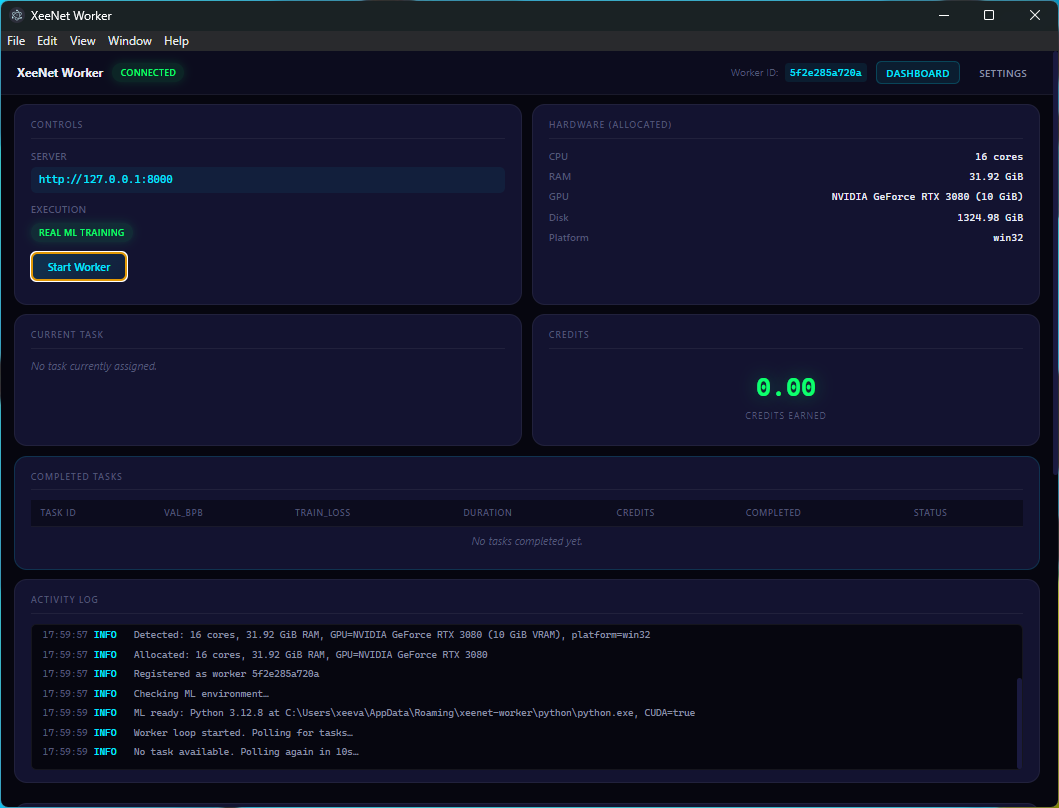
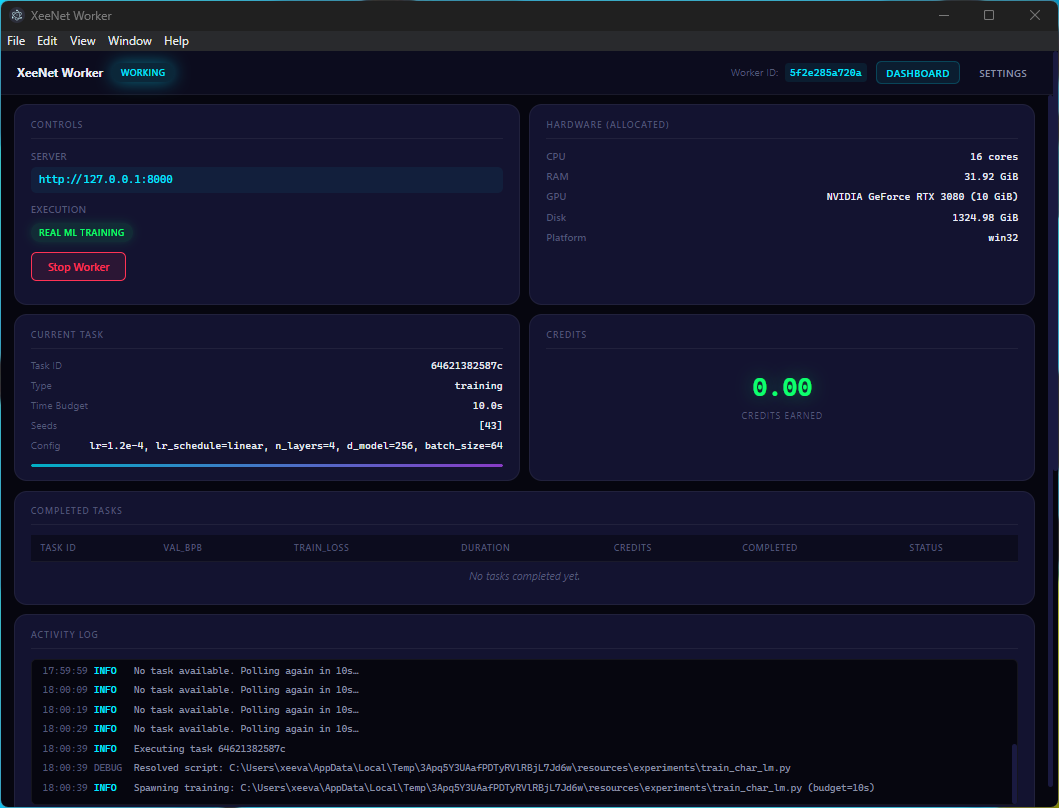
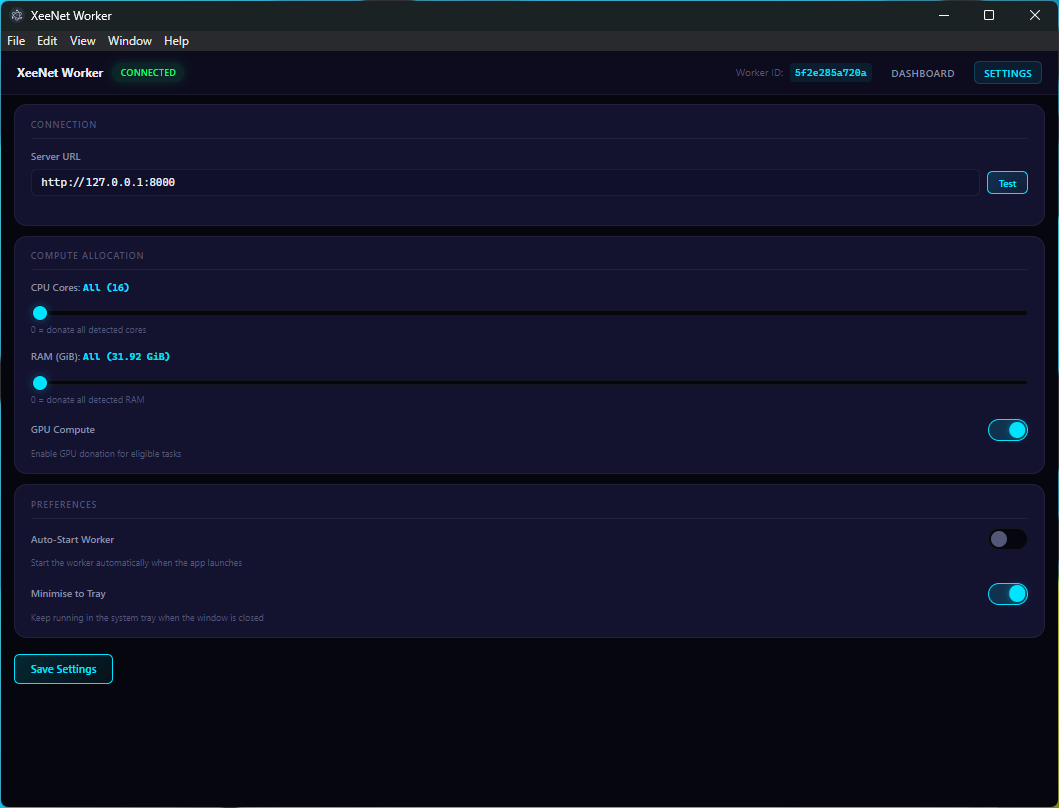
The desktop worker features a dark-themed UI with:
- Server URL configuration with connection testing (latency display)
- Resource allocation sliders for CPU cores, RAM limit, and GPU toggle
- Real-time log panel with colour-coded severity levels
- Worker state display: Idle, Polling, Working, Error
- Task information panel showing current task ID, hyperparameters, and progress
- Execution mode badge: Real ML Training vs Simulated
- System tray integration for minimise-to-tray and status icon updates
Task Execution
Python Resolution
The python-resolver module searches for a usable Python installation
in priority order:
- Embedded Python: the auto-downloaded distribution in
%APPDATA%/xeenet-worker/python/ - User-configured path: from the
pythonPathsetting python3on PATHpythonon PATH- Common Windows locations:
%LOCALAPPDATA%\Programs\Python\...,C:\Python3*\...
Once found, the resolver runs a quick probe (python -c "import torch; ...")
to determine PyTorch availability and CUDA support. The result is cached for the session.
Script Resolution
The training script is bundled inside the portable exe via electron-builder's
extraResources. At runtime, resolveScript() checks:
process.resourcesPath/experiments/(packaged app)process.cwd()/experiments/(development mode)__dirname/../../experiments/(development mode fallback)
Execution Mode Indicator
The UI displays an execution mode badge:
- Real ML Training PyTorch available, running actual training
- Simulated PyTorch unavailable, using seeded PRNG metrics
Distribution
| Aspect | Detail |
|---|---|
| Package format | Portable .exe (NSIS) |
| Electron version | 28+ |
| Node.js | Bundled (Electron's built-in) |
| Python | Auto-downloaded embeddable 3.12.8 |
| PyTorch | Auto-installed (CPU ~160 MB, CUDA ~2.5 GB) |
| Data directory | %APPDATA%/xeenet-worker/ |